



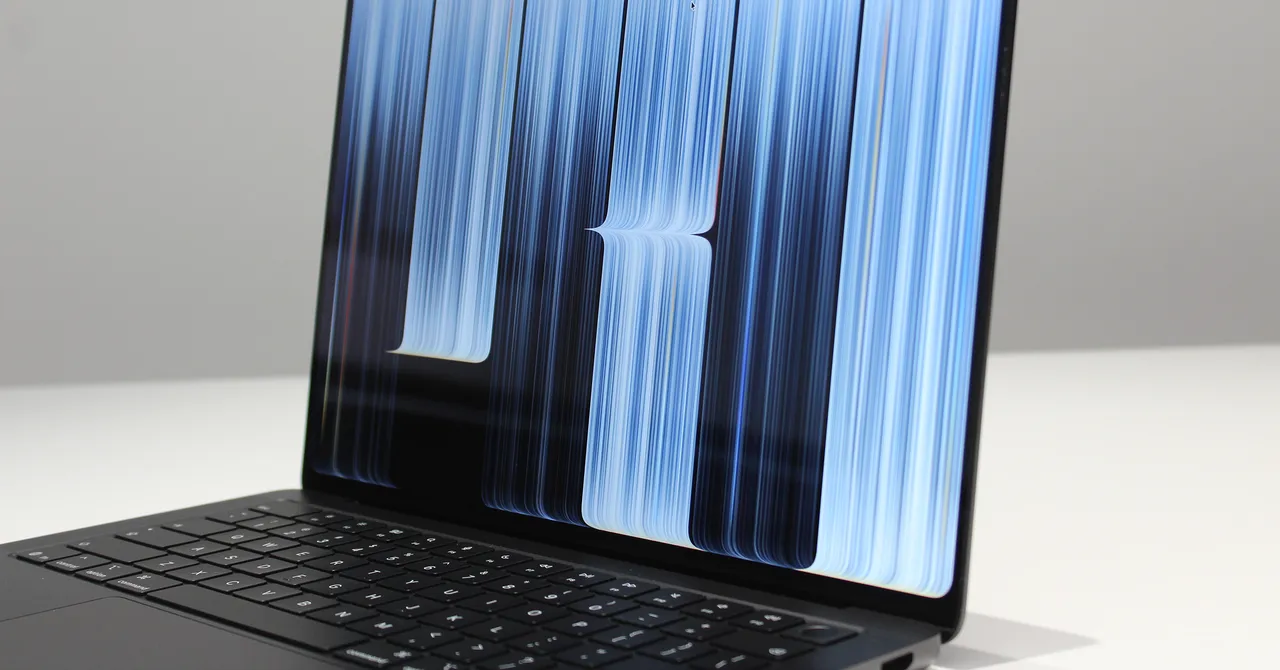
Glare is another issue with conventional, low-brightness OLED laptops that the MacBook Pro improves. When deeper blacks are rendered on the screen, it often results in harsher reflections. Sometimes it can get so bad, it feels like you’re looking into a mirror. The brightness alone on the MacBook Pro goes a long way toward overpowering glare and reflections, but Apple is also using what it claims is a “state-of-the-art” anti-reflective coating. Almost every laptop screen uses some kind antireflective coating, so one can hope that Apple’s “state-of-the-art” coating is at least on par with those, but I can attest that this is the very best I’ve seen.
The ultimate solution to cutting glare and reflections is still the option for a nano-texture display, where the anti-reflective pattern is actually etched into the screen itself rather than layered on top. That’s available as an upgrade on both the 14-inch and 16-inch models.
Reach Out and Touch It
The other major innovation happening with the MacBook Pro’s screen is the introduction of touch. Like OLED itself, this is a feature we’ve seen on many other laptops for well over a decade. I came in hoping Apple would swing for the fences here, but its use of touch interaction feels much more modest. (Let us quickly forget the failure of the Touch Bar from 2016.)
The implementation itself is impressive. Interacting with elements on the screen feels every bit as fluid as it does on an iPad. The screen also supports many of the familiar trackpad gestures, such as pinch to zoom or a three-fingered swipe to switch Spaces.
The most natural feeling touch optimizations have been lifted directly from iPadOS. If you tap in the top left windows controls, they zoom in to let you select more precisely. You can even grab a window and flick it to the side to quickly get into Split View. My favorite optimization is the ability to tap, hold, and slide down to select an item within the Menu Bar. Very clever. And yet, I was still hoping for a stronger commitment on the software side. You can’t use an Apple Pencil on this screen, and nothing in the hardware of the MacBook Pro has been adjusted to make touching the screen feel any more ergonomic.
The bigger issue is with third-party apps though. While touch-to-click will work on all apps automatically, it’s up to developers to do any more than that. Even the third-party apps we were shown during demos had varying degrees of touch optimization.
The 3D modeling application ZBrush was a good example. While certain aspects were touch-enabled, none of the controls or menus had the useful optimizations that Apple’s first-party apps had. Hopefully this touch option will become more widely adopted, but I can foresee a future in which these fingers-first interactions are mostly forgotten outside of occasionally scrolling down a webpage with your thumb. And let me be clear: All of this is more than what Microsoft has ever done to optimize Windows 11 for touch. (And Microsoft even has Windows 2-in-1 tablets to support!)
With the 2026 MacBook Pro, Apple is doubling down on what’s working well for it: Leading the way in high-end hardware. There’s plenty more testing to do on the MacBook Pro in the coming weeks, but this OLED screen already looks like the one the entire industry will be chasing for years to come.